
This content originally appeared on Level Up Coding – Medium and was authored by Arseniy Tomkevich
If you love Docker then you might be sharing one of the biggest pains when it comes to running your builds from the console. The output by default lacks coloring and its hard to tell whats going on by looking at a lot of repetitive text.
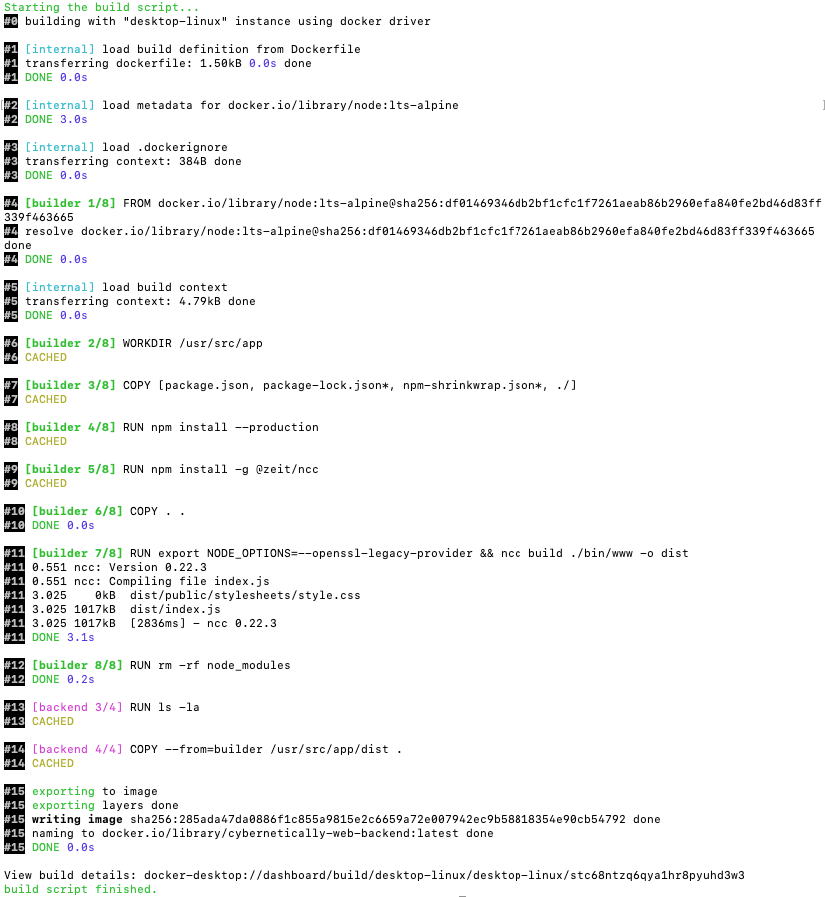
I’ve dedicated a few hours to enhancing the docker image build console output by adding color to various text fragments, and the result is fantastic. I am really excited to share it with you.
First things first, I whipped up a multi-stage Dockerfile for a fun little NodeJS project. I used NCC to bundle my whole NodeJS app and its modules into one slick .JS file, making my final Docker image way smaller. With NCC, I shrank it from a whopping 1GB to just 133.99MB!
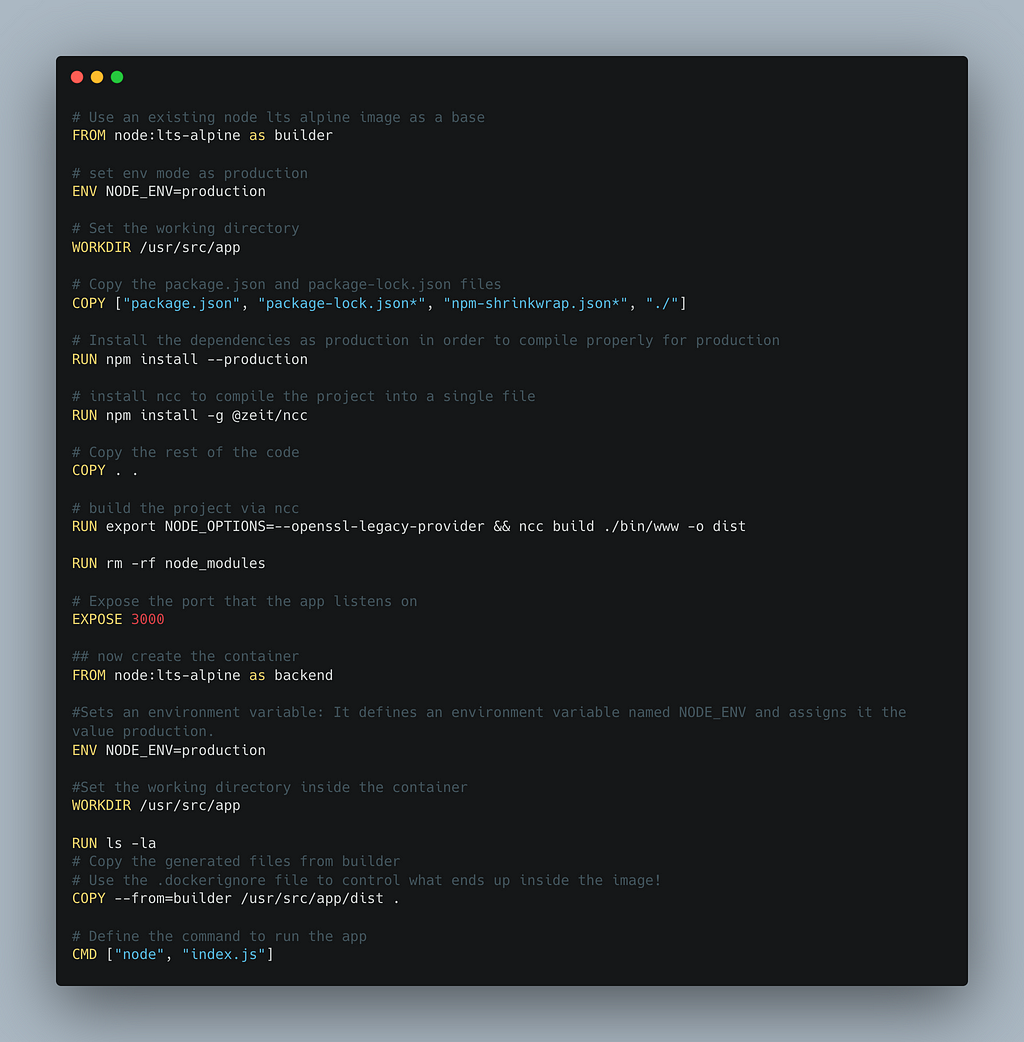
Here is the file and a gist link, I’ve explained every bit of it in the code itself but here is a line by line explanation of it.
https://gist.github.com/jsmuster/70082c79d95d663a872d14a67166ff11
Stage 1: Builder
This is the part which creates a temporary Docker image used to compile our NodeJS application code into one single Javascript file, which is used in the next step of our multi-stage build.
Base Image
FROM node:lts-alpine as builder
- Uses the latest long-term support (LTS) version of Node.js with an Alpine Linux base image for the builder stage. Alpine is chosen for its small size and efficiency.
Environment Variable
ENV NODE_ENV=production
- Sets the NODE_ENV environment variable to production, indicating that the application is in production mode.
Working Directory
WORKDIR /usr/src/app
- Sets the working directory inside the container to /usr/src/app
Copy Package Files
COPY ["package.json", "package-lock.json*", "npm-shrinkwrap.json*", "./"]
- Copies package.json, package-lock.json, and npm-shrinkwrap.json (if they exist) to the working directory. These files are used to install the necessary dependencies.
Install Dependencies
RUN npm install --production
- Installs the production dependencies listed in the prior step.
Install NCC
RUN npm install -g @zeit/ncc
- Globally installs ncc (Node.js Compiler Collection), used to compile the Node.js project into a single file.
Copy Source Code
COPY . .
- Copies the rest of the application source code to the working directory.
Build Project
RUN export NODE_OPTIONS=--openssl-legacy-provider && ncc build ./bin/www -o dist
- Sets NODE_OPTIONS to use the OpenSSL legacy provider and runs ncc to compile the project located at ./bin/www into a single file output in the dist directory.
Remove Node Modules
RUN rm -rf node_modules
- Removes the node_modules directory to save space since it is no longer needed after the project is build.
Expose Port
EXPOSE 3000
- Informs Docker that the container listens on port 3000.
Stage 2: Build the actual Docker image
This is the part that builds the actual image
Base Image
FROM node:lts-alpine as backend
- Uses the same Node.js LTS Alpine image for our NodeJS application.
Environment Variable
ENV NODE_ENV=production
- Sets the NODE_ENV environment variable to production.
Working Directory
WORKDIR /usr/src/app
- Sets the working directory inside the container to /usr/src/app. You could change this to anything you like.
Copy Compiled Files
COPY --from=builder /usr/src/app/dist .
- Copies the compiled files from the dist directory of the builder docker image to the working directory of the current docker image.
Define Command
CMD ["node", "index.js"]
- Sets the default command to run the application using node index.js.
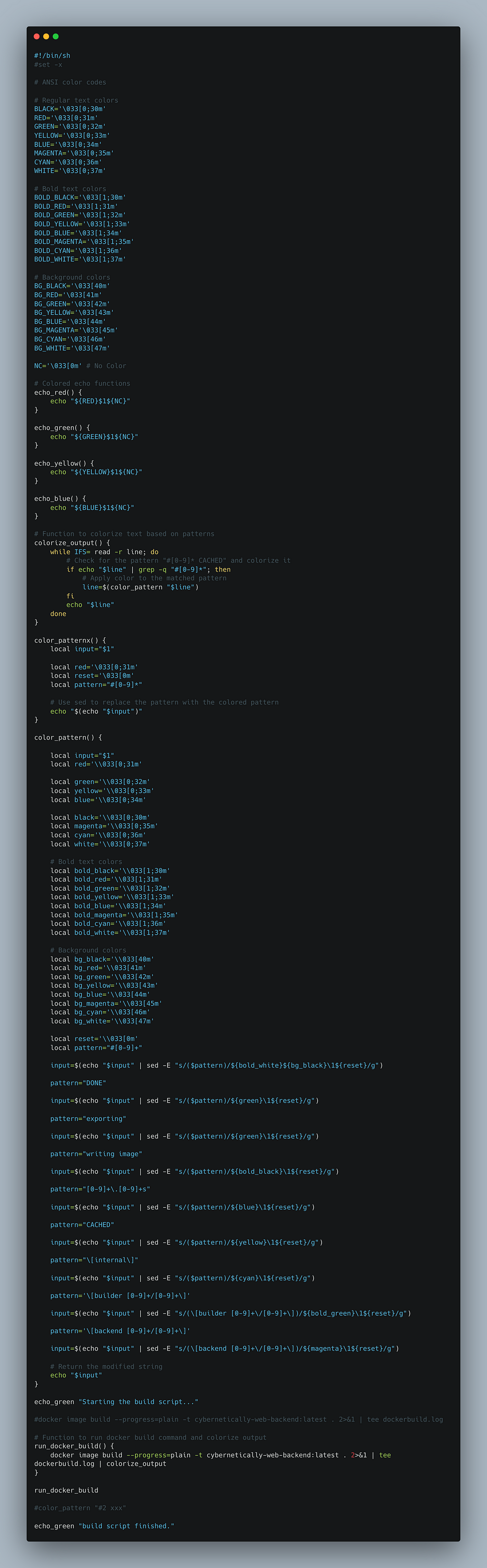
Now here is the actual script I wrote to enhance the Docker build output.
Because trying to read a detailed Docker build log without any color is like watching a mime perform in the dark — you know something is happening, but you have no idea what.
The process began with an attempt to color the initial dash and number pattern “#1”. Once this step was successful, I was able to proceed and convert the entire output accordingly. Here is a small snippet of the output:

I’ve shared the script on Github gists, so go ahead and use it as boiler plate and enhance it even further. Lets break this code down line by line:
https://gist.github.com/jsmuster/fcce009ddb35fa15f2f409b20c4c94f2
Shebang
#!/bin/sh
- This specifies that the script should be run using the sh shell. This is a part of every shell script by default, just make sure to have this at the top of the file, otherwise your scripts won’t execute.
ANSI Color Codes
# Regular text colors
BLACK='\033[0;30m'
RED='\033[0;31m'
GREEN='\033[0;32m'
YELLOW='\033[0;33m'
BLUE='\033[0;34m'
MAGENTA='\033[0;35m'
CYAN='\033[0;36m'
WHITE='\033[0;37m'

# Bold text colors
BOLD_BLACK='\033[1;30m'
BOLD_RED='\033[1;31m'
BOLD_GREEN='\033[1;32m'
BOLD_YELLOW='\033[1;33m'
BOLD_BLUE='\033[1;34m'
BOLD_MAGENTA='\033[1;35m'
BOLD_CYAN='\033[1;36m'
BOLD_WHITE='\033[1;37m'

# Background colors
BG_BLACK='\033[40m'
BG_RED='\033[41m'
BG_GREEN='\033[42m'
BG_YELLOW='\033[43m'
BG_BLUE='\033[44m'
BG_MAGENTA='\033[45m'
BG_CYAN='\033[46m'
BG_WHITE='\033[47m'

NC='\033[0m' # No Color
- Defines various ANSI color codes for regular text, bold text, and background colors. We’re going to use these to color output in the console.
Colored Echo Functions
echo_red() {
    echo "${RED}$1${NC}"
}

echo_green() {
    echo "${GREEN}$1${NC}"
}

echo_yellow() {
    echo "${YELLOW}$1${NC}"
}

echo_blue() {
    echo "${BLUE}$1${NC}"
}- Defines functions to print text in specific colors (red, green, yellow, and blue).
Colorize Output Function
colorize_output() {
    while IFS= read -r line; do
        # Check for the pattern "#[0-9]* CACHED" and colorize it
        if echo "$line" | grep -q "#[0-9]*"; then
            # Apply color to the matched pattern
            line=$(color_pattern "$line")
        fi
        echo "$line"
    done
}- Reads lines from the input and checks for patterns to colorize using the color_pattern function. The IFS= read -r line loop reads lines without trimming whitespace.
Color Pattern Function
color_pattern() {

    local input="$1"
    local red='\\033[0;31m'

    local green='\\033[0;32m'
    local yellow='\\033[0;33m'
    local blue='\\033[0;34m'

    local black='\\033[0;30m'
    local magenta='\\033[0;35m'
    local cyan='\\033[0;36m'
    local white='\\033[0;37m'

    # Bold text colors
    local bold_black='\\033[1;30m'
    local bold_red='\\033[1;31m'
    local bold_green='\\033[1;32m'
    local bold_yellow='\\033[1;33m'
    local bold_blue='\\033[1;34m'
    local bold_magenta='\\033[1;35m'
    local bold_cyan='\\033[1;36m'
    local bold_white='\\033[1;37m'

    # Background colors
    local bg_black='\\033[40m'
    local bg_red='\\033[41m'
    local bg_green='\\033[42m'
    local bg_yellow='\\033[43m'
    local bg_blue='\\033[44m'
    local bg_magenta='\\033[45m'
    local bg_cyan='\\033[46m'
    local bg_white='\\033[47m'

    local reset='\\033[0m'
    local pattern="#[0-9]+"

    input=$(echo "$input" | sed -E "s/($pattern)/${bold_white}${bg_black}\1${reset}/g")

    pattern="DONE"

    input=$(echo "$input" | sed -E "s/($pattern)/${green}\1${reset}/g")

    pattern="exporting"

    input=$(echo "$input" | sed -E "s/($pattern)/${green}\1${reset}/g")

    pattern="writing image"

    input=$(echo "$input" | sed -E "s/($pattern)/${bold_black}\1${reset}/g")

    pattern="[0-9]+\.[0-9]+s"

    input=$(echo "$input" | sed -E "s/($pattern)/${blue}\1${reset}/g")

    pattern="CACHED"

    input=$(echo "$input" | sed -E "s/($pattern)/${yellow}\1${reset}/g")

    pattern="\[internal\]"

    input=$(echo "$input" | sed -E "s/($pattern)/${cyan}\1${reset}/g")

    pattern='\[builder [0-9]+/[0-9]+\]'

    input=$(echo "$input" | sed -E "s/(\[builder [0-9]+\/[0-9]+\])/${bold_green}\1${reset}/g")

    pattern='\[backend [0-9]+/[0-9]+\]'

    input=$(echo "$input" | sed -E "s/(\[backend [0-9]+\/[0-9]+\])/${magenta}\1${reset}/g")

    # Return the modified string
    echo "$input"
}- This function holds local color variables because it needs to escape the strings, it applies various color codes to different patterns in the input string using sed. SED is a stream editor in Linux.
Initial Status Message
echo_green "Starting the build script..."
- Prints a message indicating the start of the build script in green.
Run Docker Build Function
run_docker_build() {
    docker image build --progress=plain -t cybernetically-web-backend:latest . 2>&1 | tee dockerbuild.log | colorize_output
}- Defines a function to run the Docker build command and pipe its output to both a log file and the colorize_output function. This is the line that runs the docker build, you want to replace the “cybernetically-web-backend:latest” name of the image to something of your own. This will also output your build log into dockerbuild.log
Execute Docker Build
run_docker_build
- Calls the run_docker_build function to start the Docker build process with colorized output.
Final Status Message
echo_green "build script finished."
- Prints a message indicating the completion of the build script in green.
Weekend Docker Build Makeover: Tips and Tricks was originally published in Level Up Coding on Medium, where people are continuing the conversation by highlighting and responding to this story.
This content originally appeared on Level Up Coding – Medium and was authored by Arseniy Tomkevich